Learn how Wishly link previews work and how to add a custom preview title, description and photo before sharing your published wish website.
What is a link preview?
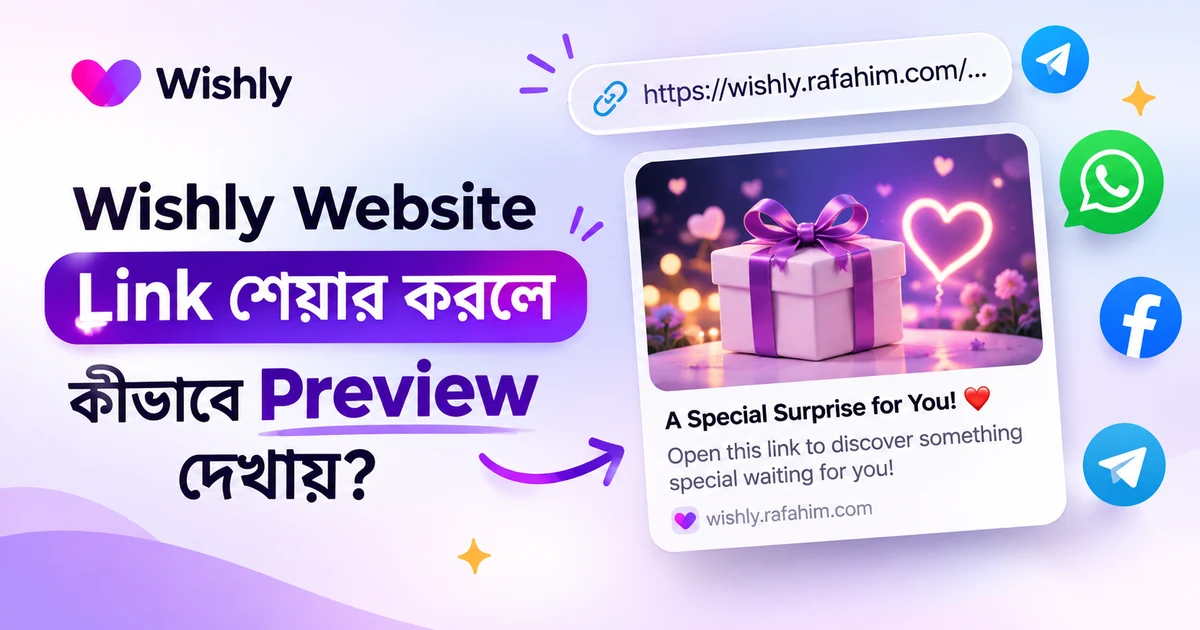
When you paste a website address into a supported chat or social app, the app may display a preview card with an image, title and short description. This gives the recipient a quick idea of what the link contains before they open it.
The preview is only an introduction. When someone taps your link, the complete published Wishly website opens with its own design, photos, message and supported interactive details.
What can you customize?
Wishly's optional Link Preview section on the publishing screen lets you personalize three parts of the preview:
- Preview title: a short heading that sets the mood for your surprise.
- Preview description: a brief line that gives the recipient a reason to open the page.
- Preview photo: an image that suits the person or occasion.
How to set up your link preview
- Create your Wishly website. Choose a template, add your message and photos, and check the website in Preview.
- Open the Publish page. When the website is ready, continue to Publish and find the optional Link Preview section.
- Add your title, description and photo. Enter the wording you want people to see and upload a suitable photo. Check the sample preview card.
- Publish or update your website. Save your changes, then share the published link with the person you made it for.
Prefer to keep the suggested preview?
You do not have to customize every field. Leave a field empty and Wishly can use the matching information from your profile, such as your name, bio or photo. If that information is not available, Wishly uses its default for that part. Each field works independently, so you can add a custom photo while keeping the suggested title.
You can also reset a customized preview and return to the default at any time from the Link Preview section.
Why might an old preview still appear?
Some chat apps may remember an earlier preview for a while. If you update the title or photo and the old version still appears, first confirm that your latest changes are published. Then try sharing the link again later. Preview behavior can vary between apps, and Wishly cannot control how long another app keeps a cached card.
Write a preview people can understand
A good preview gives enough context to make the recipient curious without revealing the whole message. Keep the title focused on the occasion or the person, then use the description to add one helpful detail. For example, a birthday preview can mention a personal page or a collection of memories without listing every surprise inside it. Avoid misleading wording, excessive punctuation or claims that do not match the actual page.
Choose a photo that remains clear when shown as a small card. A single subject, good lighting and a simple composition are often easier to recognize than a crowded collage. Keep important faces and text away from the extreme edges because some apps crop preview images differently. The preview photo should also belong to the story and be an image you have permission to share.
A final sharing checklist
- Confirm the latest version is published before copying the public URL.
- Open the link in a private or logged-out browser window to check what a recipient can see.
- Check the page on a phone and make sure the opening screen loads as expected.
- Send the link in a private message first when the page contains personal details.
- After an update, give third-party preview caches time to refresh rather than repeatedly changing the image or title.
Remember that a preview is controlled partly by the app where the link is shared. Wishly can provide page metadata, but it cannot guarantee that every messaging or social platform will display the same card or refresh it immediately.
Ready to share your story?
Open Wishly ↗ to create or update a page, then review the Link Preview option on its publishing screen.